What is an Activity in Android?
Lecture 3 – Understanding Activities and Layouts
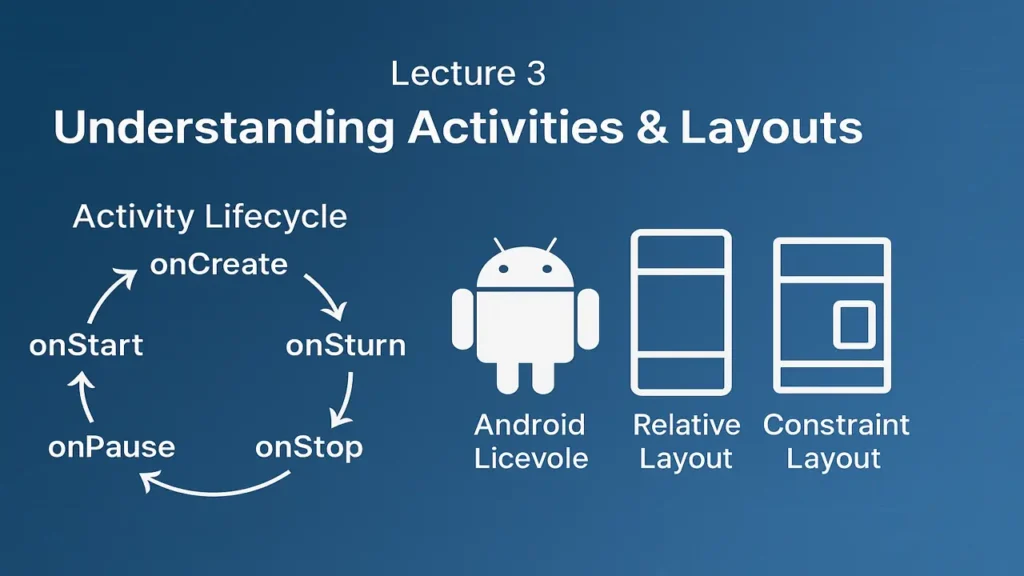
We will discuss Android Activities and Layouts with practical examples. Understand the Activity lifecycle, XML layouts vs Kotlin/Java UI code, and types of layouts such as LinearLayout, RelativeLayout, and ConstraintLayout.
What is an Activity in Android?
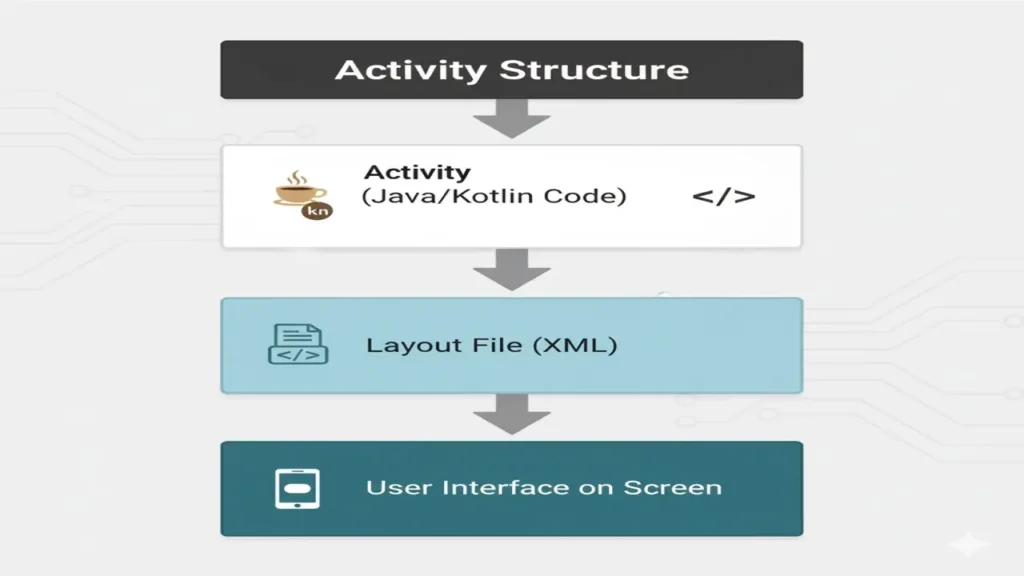
An Activity represents a single screen in an Android app like a webpage in a website.
Every time you open a new screen (e.g., Login Page, Profile Page), a new Activity runs.
Example:
MainActivity→ Home screenProfileActivity→ User’s profile
Example Code:
public class MainActivity extends AppCompatActivity {
    @Override
    protected void onCreate(Bundle savedInstanceState) {
        super.onCreate(savedInstanceState);
        setContentView(R.layout.activity_main);
    }
}
Here, setContentView() loads the XML layout associated with this Activity.
If you have missed your recent lecture, you can take a look at your recent lecture Andriod studio setup and project structure now.
Activity Lifecycle
Each Activity goes through specific states from creation to destruction.
Android manages these using lifecycle callback methods.
| Method | Description |
|---|---|
onCreate() | Called when Activity is first created |
onStart() | Activity becomes visible |
onResume() | App is in foreground (active) |
onPause() | Another Activity partially covers it |
onStop() | Activity no longer visible |
onDestroy() | Activity destroyed |
Example:
@Override
protected void onPause() {
    super.onPause();
    Log.d("ActivityState", "App is paused");
}
Explanation:
This method triggers when the user switches to another app allowing you to save data or pause processes.
XML Layouts vs. Kotlin/Java UI Code
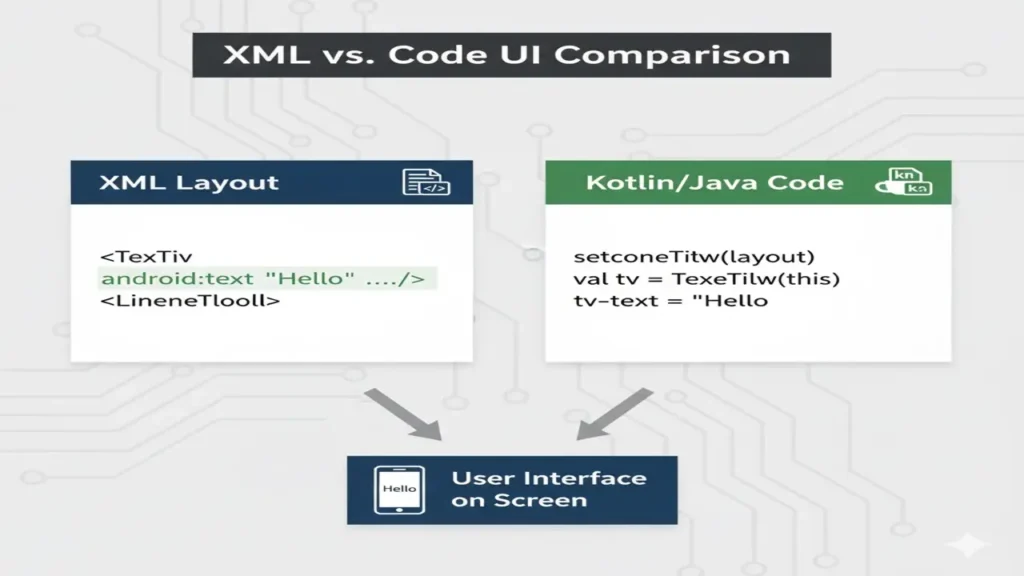
You can design your UI using XML layout files or programmatically in Kotlin/Java.
a) XML Layout (Recommended)
Declarative and separated from logic.
Example (activity_main.xml):
<TextView
    android:layout_width="wrap_content"
    android:layout_height="wrap_content"
    android:text="Hello Android!"
    android:textSize="22sp"
    android:layout_gravity="center"/>
b) Kotlin/Java UI Code
Created dynamically during runtime.
Example (Kotlin):
val textView = TextView(this)
textView.text = "Hello Android!"
setContentView(textView)
Difference:
- XML is ideal for design separation.
- Kotlin/Java code is useful for dynamic or data-driven UI.
4. Common Layout Types in Android
Layouts define how UI elements are arranged on the screen.
a) LinearLayout
Arranges elements horizontally or vertically.
Example:
<LinearLayout
    android:orientation="vertical"
    android:layout_width="match_parent"
    android:layout_height="match_parent">

    <TextView android:text="Name:"/>
    <EditText android:hint="Enter your name"/>
</LinearLayout>
Use Case: Simple stacked or row layouts.
b) RelativeLayout
Positions views relative to each other or the parent container.
Example:
<RelativeLayout
    android:layout_width="match_parent"
    android:layout_height="match_parent">

    <TextView
        android:id="@+id/label"
        android:text="Username"/>

    <EditText
        android:layout_below="@id/label"
        android:hint="Enter username"/>
</RelativeLayout>
Use Case: When precise alignment between elements is required.
c) ConstraintLayout
Most flexible and modern layout supports responsive design using constraints.
Example:
<androidx.constraintlayout.widget.ConstraintLayout
    android:layout_width="match_parent"
    android:layout_height="match_parent">

    <TextView
        android:id="@+id/helloText"
        android:text="Hello Android!"
        app:layout_constraintTop_toTopOf="parent"
        app:layout_constraintStart_toStartOf="parent"
        app:layout_constraintEnd_toEndOf="parent"/>
</androidx.constraintlayout.widget.ConstraintLayout>
Use Case: Modern UIs, adaptive screens.
5. Summary
After this lecture, students can:
- Understand what an Activity is and its lifecycle
- Differentiate between XML layouts and Kotlin/Java UI code
- Use LinearLayout, RelativeLayout, and ConstraintLayout effectively
Conclusion
Mastering Activities and Layouts helps developers structure apps properly and build responsive, dynamic UIs.
Once you understand lifecycle behavior and layout design, you’re ready to create more advanced Android interfaces.
People also ask:
An Activity represents a single screen with a user interface — it’s where users interact with your app.
A Layout defines the structure and design of the user interface, specifying how UI elements like buttons and text views appear.
An Activity is linked to a Layout through the method:
setContentView(R.layout.layout_name);