
Android Intents and Navigation with easy examples. Understand explicit vs implicit intents, passing data between activities, splash screens, and navigation drawer setup.
What Are Intents in Android?
An Intent is a message object that allows different components of an Android app (like Activities, Services, and Broadcast Receivers) to communicate with each other.
It tells the system what action to perform and which component should handle it.
Example:
- Move from Login screen → Home screen
- Open camera, share content, or make a call
Explicit vs Implicit Intents
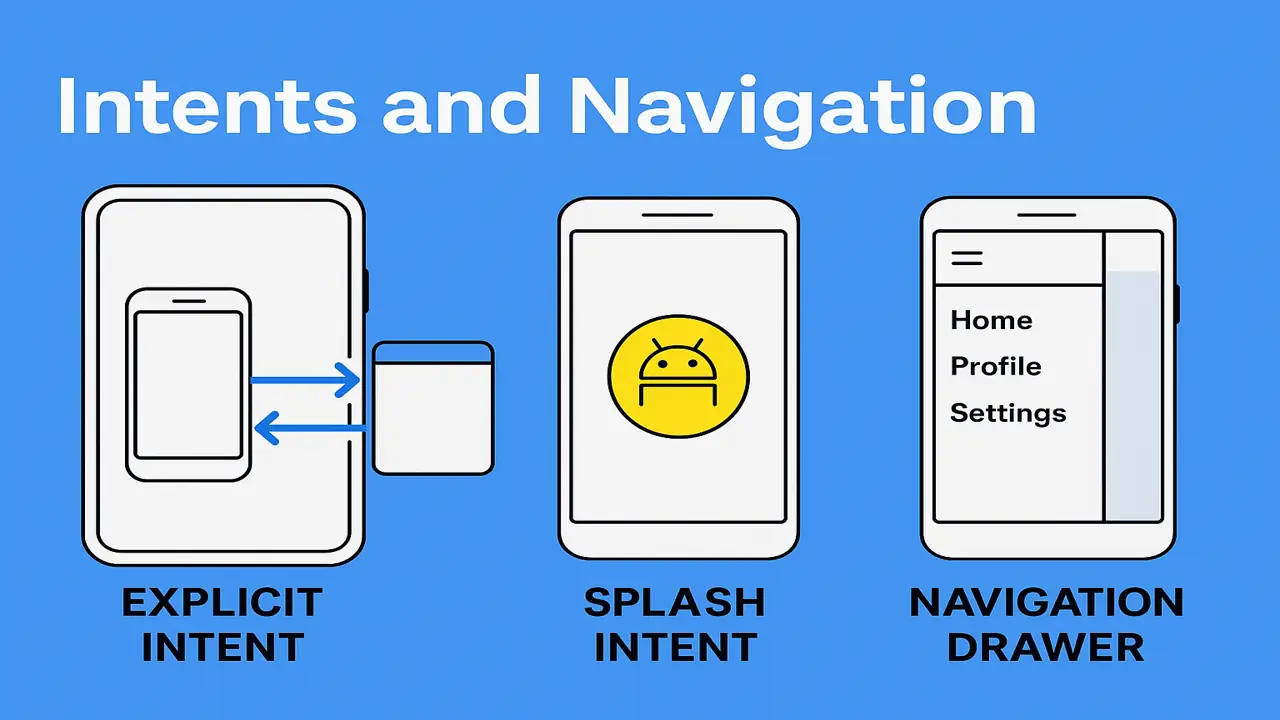
Explicit Intent
Used when you want to open a specific Activity inside your own app.
Example (Kotlin):
val intent = Intent(this, ProfileActivity::class.java)
startActivity(intent)
Example (Java):
Intent intent = new Intent(this, ProfileActivity.class);
startActivity(intent);
Use Case: Login → Dashboard, List → Detail screen
Implicit Intent
Used when you want the system to perform an action using another app that can handle it.
Example (Dial a Number):
val intent = Intent(Intent.ACTION_DIAL)
intent.data = Uri.parse("tel:03001234567")
startActivity(intent)
Example (Open a Web Page):
Intent i = new Intent(Intent.ACTION_VIEW, Uri.parse("https://electuresai.com"));
startActivity(i);
Passing Data Between Activities
You can send information from one Activity to another using Intent Extras.
Using Extras
Sender Activity:
val i = Intent(this, DetailActivity::class.java)
i.putExtra("USER_NAME", "Ali")
i.putExtra("AGE", 22)
startActivity(i)
Receiver Activity:
val name = intent.getStringExtra("USER_NAME")
val age = intent.getIntExtra("AGE", 0)
Sending Complex Objects with Parcelable
Parcelable makes it easy to send full objects between Activities.
Example:
@Parcelize
data class User(val id: Int, val name: String): Parcelable
Send:
val intent = Intent(this, DetailActivity::class.java)
intent.putExtra("USER", user)
startActivity(intent)
Receive:
val user = intent.getParcelableExtra<User>("USER")Getting Result Back (Activity Result API)
Newer, modern method (replaces startActivityForResult).
Example:
private val imagePicker = registerForActivityResult(ActivityResultContracts.GetContent()) { uri ->
    imageView.setImageURI(uri)
}
buttonPick.setOnClickListener { imagePicker.launch("image/*") }
Splash Screen Basics
A Splash Screen is shown briefly when your app launches — used for branding or loading setup.
Steps:
Add dependency:
implementation "androidx.core:core-splashscreen:1.0.1"Add theme in styles.xml:
<style name="Theme.MyApp.Splash" parent="Theme.SplashScreen">
    <item name="windowSplashScreenAnimatedIcon">@drawable/ic_logo</item>
    <item name="windowSplashScreenBackground">@color/black</item>
</style>
Apply it in AndroidManifest.xml:
<activity
    android:name=".MainActivity"
    android:theme="@style/Theme.MyApp.Splash" />
Use in code:
installSplashScreen()Navigation Drawer Basics
A Navigation Drawer slides in from the left edge and allows users to navigate through different sections of your app.
Layout Example:
<androidx.drawerlayout.widget.DrawerLayout
    android:id="@+id/drawerLayout"
    android:layout_width="match_parent"
    android:layout_height="match_parent">

    <!-- Main Content -->
    <LinearLayout
        android:orientation="vertical"
        android:layout_width="match_parent"
        android:layout_height="match_parent">

        <androidx.appcompat.widget.Toolbar
            android:id="@+id/toolbar"
            android:layout_width="match_parent"
            android:layout_height="wrap_content" />
    </LinearLayout>

    <!-- Drawer Menu -->
    <com.google.android.material.navigation.NavigationView
        android:id="@+id/navView"
        android:layout_width="wrap_content"
        android:layout_height="match_parent"
        android:layout_gravity="start"
        app:menu="@menu/menu_drawer" />
</androidx.drawerlayout.widget.DrawerLayout>
Code Example (Kotlin):
val toggle = ActionBarDrawerToggle(this, drawerLayout, toolbar, R.string.open, R.string.close)
drawerLayout.addDrawerListener(toggle)
toggle.syncState()
The approach followed at E Lectures reflects both academic depth and easy-to-understand explanations.
Summary
After completing this lecture, students will:
- Understand explicit vs. implicit intents
- Know how to pass data between activities
- Implement splash screens
- Create a navigation drawer for app navigation
People also ask:
An Intent is a message object that helps Android components communicate with each other. It tells the system what action to perform or which Activity to open for example, moving from one screen to another or launching the camera.
- Explicit Intent directly specifies the target Activity within your app.
Example: Moving from LoginActivity → HomeActivity. - Implicit Intent asks the system to choose the appropriate app to handle an action.
Example: Opening a web page or dialing a phone number.
Use putExtra() in the sending Activity and getExtra() in the receiving one.
val intent = Intent(this, DetailActivity::class.java)
intent.putExtra("USERNAME", "Ali")
startActivity(intent)
val name = intent.getStringExtra("USERNAME")Parcelable is an Android interface used to send entire objects (like User data) between Activities efficiently. It’s faster and more memory-friendly than Serializable.
The Activity Result API is the modern, lifecycle-aware method for getting results back from Activities. It’s safer and easier to maintain than the older startActivityForResult() approach.
A Splash Screen is a temporary startup screen shown when your app launches. It displays the app logo or animation while background processes (like loading resources) complete.
Use the SplashScreen API or apply a splash theme in your AndroidManifest.xml.
<activity
    android:name=".MainActivity"
    android:theme="@style/Theme.MyApp.Splash" />