
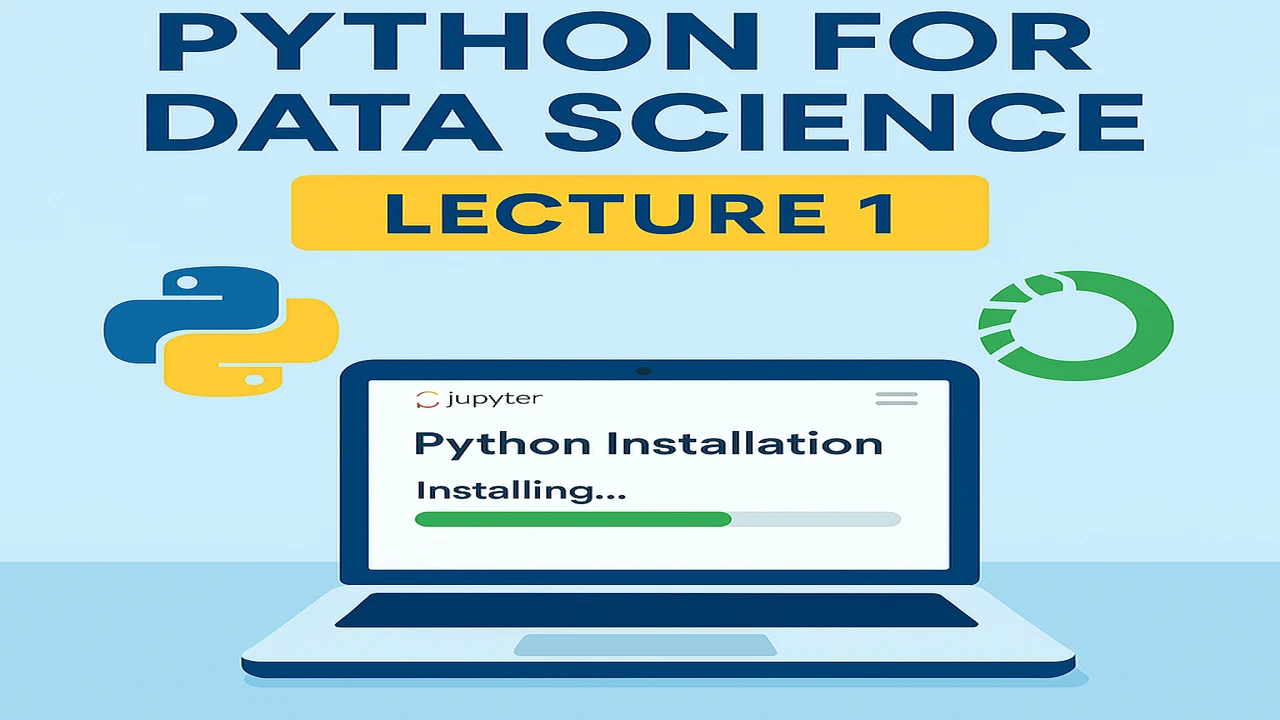
If you’re completely new to programming and Data Science, this is where your journey actually starts. In this first lecture, we’ll set up everything you need: Python, Anaconda, Jupyter Notebook and by the end, you’ll be able to run your first real Python program by yourself.
So even if you’ve never written a single line of code before, relax. Just follow the steps, and you’ll be ready for the rest of the course.
What You Will Learn in This Lecture
By the end of Lecture 1, you will be able to:
- Explain in simple words what Python is and why it is used in Data Science
- Install Python and Anaconda on your computer step by step
- Open Jupyter Notebook and run your very first Python program
- Check your understanding with a short MCQ quiz and practice questions
What is Python?
Python is a simple, powerful and very flexible programming language. A lot of modern technology quietly runs on Python in the background. It is used in:
- Data Science
- Machine Learning
- Artificial Intelligence
- Web Development
- Automation and Scripting
One big reason Python is so popular: the code almost looks like English.
That’s why:
- Beginners find it easy to read and write
- It doesn’t scare non-programmers
- There are thousands of ready-made libraries you can use instead of building everything from scratch
If you’re serious about starting a career in Data Science, Python is usually the first language professionals recommend.are starting your journey in Data Science, Python is the best first language to learn.
Why Python for Data Science?
Data Science basically means working with data to find patterns, insights and predictions that help in decision-making.
Python fits this perfectly because of its rich ecosystem of libraries:
- NumPy – fast calculations and numerical operations
- Pandas – working with data in rows and columns (like Excel, but much more powerful)
- Matplotlib / Seaborn – creating charts and visualizations
- Scikit-Learn – building and testing machine learning models
With these tools, you can:
- Clean and prepare messy datasets
- Analyze large amounts of data without Excel crashing
- Create clear visual charts and dashboards
- Train and test machine learning models on real-world data
In short: with Python, you don’t just “store” data you actually use it to answer questions.
Step-by-Step Installation Guide (Python + Anaconda)
This installation guide is written as if you’re a complete beginner.
You don’t need any programming background. Just follow each step in order.
Step 1 – What is Anaconda?
AnaInstead of installing Python and every library one by one, we use Anaconda.
Anaconda is a bundle that includes:
- Python itself
- Jupyter Notebook (where we will write and run code)
- Many important Data Science libraries (NumPy, Pandas, etc.)
So instead of 10 separate downloads, we just install Anaconda once.
Step 2 – Download Anaconda
- Open your web browser (Chrome, Edge, Firefox – any)
- Go to the official website: anaconda.com/download
- On the page, you’ll see options for Windows / macOS / Linux
- If you are using Windows, click:
“Download for Windows (64-bit)” - Wait for the download to finish. The file may take a few minutes depending on your internet speed.
Step 3 – Open the Installer
- Open your Downloads folder
- Look for a file similar to:
Anaconda3-xxxx-Windows-x86_64.exe- Double-click this file to start the setup
Step 4 – Welcome Screen
- A setup window will open.
- Click Next.
Step 5 – License Agreement
- Scroll through or read the license
- Click I Agree
Step 6 – Select Installation Type
- You’ll see an option like:
- “Just Me (recommended)”
- Select this option and click Next.
Step 7 – Choose Install Location
- Here you will see a folder path where Anaconda will be installed.
- Don’t change the location (leave default settings)
- Click Next
Step 8 – Advanced Options (Important)
You will see two checkboxes:
- “Add Anaconda to my PATH environment variable”
- “Register Anaconda as my default Python”
If you are a beginner:
- Leave both boxes UNCHECKED
- Then click Install
Now Anaconda will start installing.
Step 9 – Wait for Installation
- This step may take 3–10 minutes depending on your computer.
- Don’t close the setup window
- Just let it complete
Step 10 – Finish Setup
- Once installation is complete:
- Click Finish
- You can close all open windows
- At this point, Anaconda (and Python) are installed on your system.
Opening Anaconda Navigator and Jupyter Notebook
Now let’s open the tools we’ll actually use to write Python code.
Step 11 – Open Anaconda Navigator
- Click the Start Menu (Windows icon)
- Type “Anaconda Navigator” in the search bar
- Click on the Anaconda Navigator app
The first time you open it, it might take a minute or two to load.
That’s completely normal.
Step 12 – Launch Jupyter Notebook
Inside Anaconda Navigator:
- Find “Jupyter Notebook” in the list of tools
- Click the “Launch” button next to it
Your default web browser will open automatically and show the Jupyter Notebook home page.
Your web browser will open automatically with the Jupyter Notebook home page.
Step 13 – Create Your First Python Notebook
- On the Jupyter page, go to the top-right corner.
- Click “New” → “Python 3”.
- A new blank page (notebook) will open.
Lecture 2 – Python Fundamentals (Variables, Data Types & Operators)
In the empty cell, type:
print("Hello E Lectures AI!")Now press Shift + Enter on your keyboard.
You should see this output just below the cell:
Hello E Lectures AI!Congratulations! You have successfully installed Python, opened Jupyter, and run your first program.
Common Problems and Simple Fixes
It’s normal to face small issues when setting up tools for the first time.
Here are some quick fixes for common problems:
| Problem | Simple Fix |
|---|---|
| Jupyter Notebook does not open | Restart your computer, open Anaconda Navigator again, then click Launch |
| Browser does not open automatically | Open Anaconda Navigator → click Launch again, or open localhost:8888 manually if shown |
| You see red error text after running code | Carefully check spelling, brackets () and quotation marks " ' |
| Anaconda Navigator opens very slowly | This is normal the first time. Wait a few minutes and avoid clicking repeatedly |
Quiz – Multiple Choice Questions (MCQs)
Instruction: First read the question and choose your answer. Then scroll down to see the correct answer
Python is mainly used for:
a) Cooking recipes
b) Data Science and programming
c) Hair styling
d) Car washing
Answer: b) Data Science and programming
Which tool is most commonly used to write and run Data Science code in Python?
a) MS Paint
b) Jupyter Notebook
c) VLC Media Player
d) Notepad only
Answer: b) Jupyter Notebook
What is Anaconda?
a) A type of game
b) A music player
c) A Python distribution that includes Python and Data Science tools
d) An antivirus software
Answer: c) A Python distribution that includes Python and Data Science tools
Which function in Python is used to display output on the screen?
a) show()
b) print()
c) display()
d) output()
Answer: b) print()
Which symbol is used to write a comment in Python?
a) @
b) //
c) #
d) $$
Answer: c) #
Continue to Lecture 2 (Python Fundamentals + Operators)
Practice Questions
Instruction for students: Read the question, open your Jupyter Notebook, and try to solve it yourself. After that, come back and check the answer.
name = input("Enter your name: ")
print("Welcome,", name, "to Python for Data Science!")name = input("Enter your name: ")
age = input("Enter your age: ")
city = input("Enter your city: ")
print("My name is", name + ", I am", age, "years old and I live in", city + ".")print("Hello Electures AI!")You press Shift + Enter to run the current cell.